How to hide Google and Bing AI answers for one search—or make links your default
Choose a browser setup below, check that it worked, and weigh Bing’s new-tab changes against Safari’s mixed extension reviews.
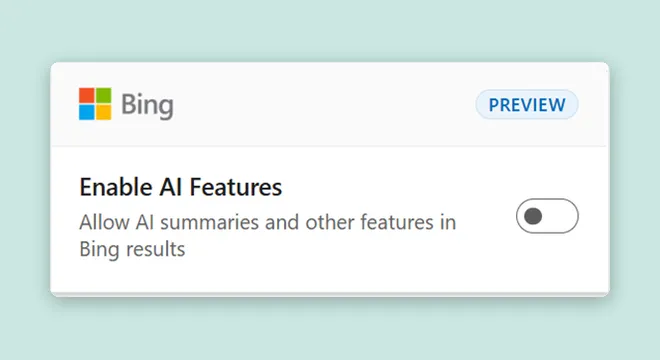
Google offers no off switch for core AI Overviews, but its Web filter gives you text links without them. For Bing, Microsoft says adding -ai to your search removes AI answers; its Chrome and Edge extension saves a persistent preference. Chrome users face an extra change: the extension’s listing says it makes Bing the default search engine and loads Bing whenever you open a new tab.
Start with a single search
On Google, run your search, then select Web among the results filters. Their order varies with your query; Google says to check All if the filter you need is missing. To verify the change, look for Web being selected. An ordinary results page without an AI Overview is a weaker check because you want to confirm which view you are using.
The experimental AI setting in Google Labs controls a separate experience: switching it off leaves core AI Overviews enabled. Google lists those Overviews as available in both the United States and United Kingdom.
For Bing, take a query that currently displays an AI answer and search again with -ai at the end. Compare the pages to check the effect. Microsoft’s method requires no extension, so you can try it before changing any browser settings.
Make Google Web your desktop default
Follow the browser-specific routes below from TenBlueLinks and 9to5Google. They configure searches through the browser’s chosen search engine. In Chrome, the @web shortcut also offers an on-demand option without making Web your default.
| Browser | Setup | Scope | | --- | --- | --- | | Chrome | Open chrome://settings/searchEngines. Add a Site search entry: name Google Web, shortcut @web, URL {google:baseURL}search?q=%s&udm=14. Its menu offers Make default. | Address-bar searches; @web for occasional use. | | Edge | In Settings, open Privacy, search, and services, then Address bar and search, then Manage search engines. Edit Google Search’s URL to {google:baseURL}search?q=%s&udm=14. | Google searches in Edge. | | Firefox | Visit TenBlueLinks; right-click the address bar and add Google Web. Choose it under Settings → Search → Default Search Engine. | Firefox’s selected search engine. |
9to5Google says the Chrome/Edge URL method also works in other Chromium browsers, including Brave, Opera and Vivaldi. After setup, search from the address bar and check for both the selected Web filter and udm=14 in the results URL. Those checks let you verify the destination after following the guide’s menu path.
Save Bing’s AI preference
Install Bing AI Search Choice, then switch its AI toggle off. Repeat a search that previously produced an AI answer to check the saved preference. Microsoft labels the extension a preview and says it may change in response to feedback.
If you remember disabling AI inside Bing’s search settings, Search Engine Roundtable reports that Microsoft removed that earlier control and later promoted the extension and -ai alternatives again. An older guide pointing to that settings switch can therefore send you looking in the wrong place.
Android, iPhone and Safari
| Browser | Setup | | --- | --- | | Android Chrome | Visit TenBlueLinks, search Google in a new tab, then top-right menu → Settings → Search engine → Recently visited → Google Web. | | iPhone Chrome | Repeat that sequence using the bottom-right menu. |
TenBlueLinks says queries go directly to Google, even when its domain appears as the configuration source.
Tedium describes Safari as lacking a built-in custom-search-engine option and points to extensions instead. For a no-install route, udm14.com redirects searches to Google’s Web view. Choose that route if you want to use a separate search starting point without configuring a browser engine.
The udm14 for Safari listing requires iOS 16 or newer, iPadOS 16 or newer, or macOS 11 or newer. The UK store lists it as free. Its average rating is 3.0 from four ratings, and recent reviews say it stopped redirecting, so test it before relying on it.
Another reviewer reports redirect crashes with a quoted search containing letters and numbers. The release notes mention a Mac version and a fix for the link to Safari settings on iOS 18. Check your own searches in Safari; the browser setups here provide no app-specific instructions for the standalone Google or Bing apps.
What else changes?
In Tedium’s examination, Google Web also removed knowledge panels, address or link metadata, and ads. Treat the advertising result as an observation from that review, rather than a guarantee for today’s searches. Web still returns results influenced by search-engine optimization; it changes the presentation without restoring an older Google index.
Ars Technica tested adding swear words to searches to suppress Google’s Overviews. Its warning: the trick can substantially change the links returned, especially with SafeSearch switched off. Ars also found that -ai suppressed Overviews, but other minus-prefixed strings worked too. Use Microsoft’s documented -ai method for Bing; choose Google’s Web filter for Google.
Google describes search operators as ways to narrow results. Adding minus-prefixed text can therefore affect which pages match your query, cutting links from the results as well as changing what appears above them. Reserve query exclusions for searches where you actually want to narrow the matches.
Search occasionally: use Google’s Web filter or Bing’s -ai; search daily: set Google Web as your browser default.
Sources
- Microsoft Bing Blog: Your choice: Turn AI answers on or off in Bing ↗
- Microsoft Corporation via Chrome Web Store: Microsoft Bing AI Search Choice ↗
- Search Engine Roundtable: Bing Touts Two Methods To Turn Off AI In Search But It's Not A Search Setting ↗
- Google Search Help: Find information in faster & easier ways with AI Overviews in Google Search ↗
- TenBlueLinks: Turn Off Google AI Overview Set "Web" as Default ↗
- 9to5Google: How to avoid AI in Google Search since you can’t turn it off ↗
- Ars Technica: “Just give me the f***ing links!”—Cursing disables Google’s AI overviews ↗
- Google Search Help: Refine Google searches ↗
- Tedium: Does One Line Fix Google? ↗
- Andrew Sun via Apple App Store: udm14 for Safari ↗