Gemini controlling the wrong speaker or light? Four checks in Google Home
Compare app and voice control, then inspect names, rooms, playback defaults and routines.
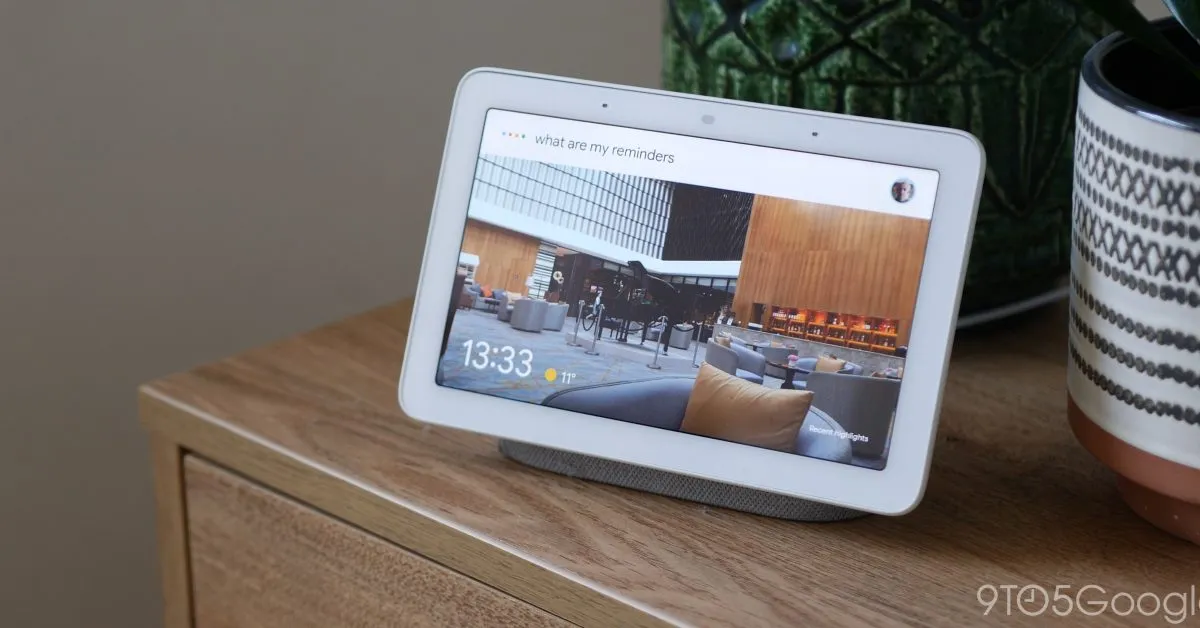
Before blaming Gemini, check four possible setup causes: duplicate names, a misassigned room, a default playback speaker or an overlapping routine. If none applies, the fault may be Gemini’s interpretation, which Google has been patching.
Test control
Check that the device has power. For a non-Matter third-party device, confirm that you have completed setup in its manufacturer’s app, following Google’s connection guidance.
Control one device in Google Home, then make an equivalent voice request using its exact name. For a light, switch it off in the app, then ask Gemini to switch off that named light. App success paired with voice failure points the investigation toward interpretation or targeting; failure in both warrants checking connectivity and setup.
Review the request in Home history, where you can inspect commands and questions addressed to Gemini. Compare what you asked with the task it attempted.
A response about an entirely different task calls for a different test. TechRadar described a demonstration in which a complaint about the cold prompted a Spotify-account response. That example involved interpreting the request, rather than simply selecting another room. Try an explicit device command before changing its assignment.
1. Names
Give competing devices distinctive names, such as Desk lamp and Sofa lamp, to reduce ambiguity. Recognition can still fail. For room-wide lighting, name the room in your request; name an individual light to control just that light.
To rename a device, go to Home → All devices, hold its tile, then open Settings → Name. Enter the new name and save. Changing a name in Home leaves its name in the manufacturer’s app unchanged.
2. Rooms
Open the device’s Settings → Room or Placement and choose the intended room. For the wrong home, use Settings → Home, select the destination, confirm Move device and assign a room there.
A scrambled device list can also be a display problem. Android Authority reported devices appearing under “Linked to you” while their settings retained the correct home and room. Check those saved settings before reassigning anything. Force-closing the Android app temporarily helped some users; reassignment and clearing app data were unreliable remedies. One user reported restoring rooms by leaving the Home app’s Public Preview, but that remains an unconfirmed workaround.
3. Playback
If music starts elsewhere, inspect the device that heard you. A speaker, display or Smart Clock can send media to a saved default destination without you naming that destination. Its room assignment and playback destination are separate settings.
Google’s Android Assistant instructions put these controls under the listening device’s settings: Audio → Default music speaker or Display → Default TV. Reset the destination if it is wrong, or explicitly name another device to override it for one request.
For remote music control, add “on” followed by the device’s name to a basic command. Google excludes news and podcasts from this method. During group playback, a spoken volume command adjusts only the device that heard it.
To retest a transfer, Google suggests “move Mozart to the living room” or “bring the music here.” The release notes reproduced by Droid Life describe improved understanding of requests to move playing media between locations. Try the phrasing that matches where you want playback to go.
4. Routines
Routines acting on the same devices simultaneously can produce unexpected results. In Activity, inspect “Routine started” events for the routine, time and trigger. Check indirect triggers too: playback starting elsewhere in the home could activate another routine. Correct starters and actions that do not match your intent.
Temporarily pause a suspect routine through Automations: select it, turn off Activate Routine and save. Repeat your original voice test to see whether the result changes. Presence-based automations cannot be paused with this ordinary routine switch.
For an automatically starting Personal Routine with audio, choose its output using Play on. If it uses “Device you speak to,” test by speaking to that device rather than tapping Play in the app.
If a device is absent from starters or actions, check its membership in the routine’s home. Google’s guidance says a device still missing from the correct home does not currently support routines.
Try again
Google says Gemini asks for clarification when devices match, though it may not have reached your home even with the latest app. The entry gives no confirmed November 11 date or per-home verification method.
Google also reports fixes for remote volume requests changing the listening device, unsolicited “Sorry, I didn’t understand” responses, and rare confusion between media sleep timers, ordinary timers and alarms. Those reported fixes cover symptoms worth checking separately from device names and rooms.
Supported existing hardware includes Nest Audio, Nest Mini (2nd gen) and Nest Hub (2nd gen). An “Introducing Gemini for Home” notification signals that your home can upgrade; it does not identify which individual fixes have arrived.
A subscription is unnecessary for basic smart-home commands or media search and playback. Google lists both the US and UK for Gemini for Home early access, so country eligibility and activation in your particular home are separate checks.
Report failures
If explicit commands still fail, submit feedback recording the request, time, intended and actual devices, and app-control result.
Avoid unlinking a partner service to reset one troublesome device: unlinking removes every device supplied by that service.
Sources
- Google Home and Nest Help: What's new in Google Home ↗
- Google Home and Nest Help: Control your home devices by voice ↗
- Google Home and Nest Help: Connect third-party smart home devices in the Google Home app ↗
- Google Assistant Help: Set your preferred playback device ↗
- Google Home and Nest Help: Troubleshoot Google Home automations ↗
- Google Home and Nest Help: Create & manage Routines in Google Home ↗
- Google Home and Nest Help: Learn about Gemini for Home voice assistant ↗
- 9to5Google: Google Home update should make Gemini stop saying ‘Sorry, I didn’t understand’ so much ↗
- Android Authority: Google Home users are watching their carefully organized rooms fall apart ↗
- TechRadar: Think twice about upgrading to Gemini for Home – it’s getting some tasks ‘absolutely wrong’ and is full of bugs ↗
- Droid Life: Google Home App Gets One of the Biggest Updates We’ve Seen ↗